

SAP Business One User Authorizations: How to Manage Permissions and User Groups
Quick Answer
SAP Business One user authorizations determine which users can view, create, update, or manage specific business information and system functions. Administrators can configure general authorizations, assign permissions to individual users, and use user groups to support consistent access management. Reviewing these settings helps businesses reduce unauthorized access, protect sensitive financial and operational data, improve accountability, and maintain appropriate separation of duties. Effective authorization management requires role-based access decisions, periodic reviews, controlled changes, and testing to confirm that permissions match each employee’s responsibilities.
Understanding User Authorizations in SAP Business One
SAP Business One user authorizations control the activities each user can perform within the application. These permissions help organizations manage access to financial information, purchasing, sales, inventory, production, banking, reporting, and other business functions.
Not every employee needs access to every module. A sales representative may need to create sales quotations and orders, while a finance employee may need access to accounting transactions and financial reports. A warehouse employee may need inventory and goods movement permissions without requiring access to confidential financial information.
User authorizations help administrators align system access with these operational responsibilities.
The objective is not simply to restrict access. It is to give each employee the permissions necessary to complete assigned work without exposing unrelated or sensitive information.
Poorly managed authorizations can create several business risks:
- Employees may access financial or customer information beyond their responsibilities.
- Users may create or modify transactions without appropriate oversight.
- Changes to permissions may remain unnoticed after employees change roles.
- Employees may depend on colleagues to complete routine tasks because their access is incorrectly restricted.
- Managers may find it difficult to establish accountability when too many users have similar administrative privileges.
A structured authorization process helps balance operational efficiency with appropriate control.
General Authorizations and User Permissions
General authorizations are central to managing access in SAP Business One. They allow administrators to control permissions across available functions and areas of the application. Depending on the function and system version, permission levels may determine whether users can access a feature or perform particular actions.
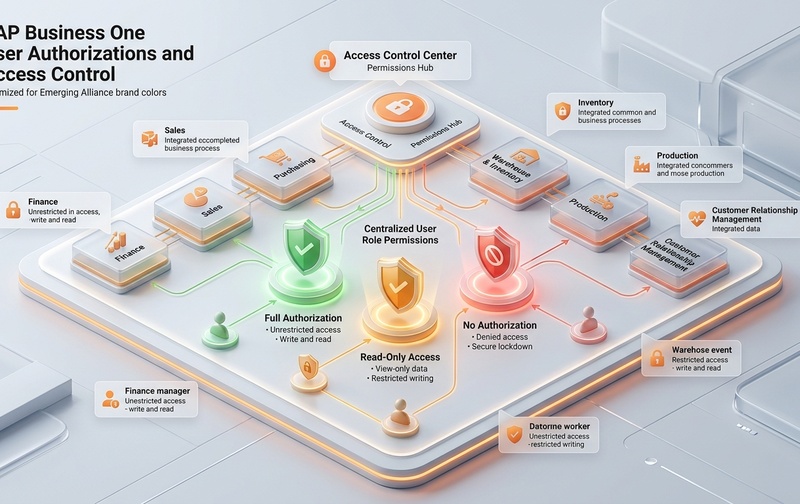
Role-based access control in SAP Business One: Aligning user authorizations across financial, sales, purchasing, and warehouse modules.
For example, an organization may need to distinguish between employees who can view purchasing information and those who can create or modify purchasing documents. Similarly, a finance team may require different access levels for routine transaction processing, financial reporting, and sensitive configuration activities.
When reviewing general authorizations, administrators should consider three factors.
- Business responsibility: Identify the tasks the employee performs and the information needed to complete them.
- Required permission level: Determine whether the employee needs to view information, create records, update transactions, or perform more sensitive activities.
- Control requirements: Identify functions that require additional oversight, approval, or restricted access because they affect financial results, inventory, customer data, or business operations.
Authorization options and their exact behaviour can vary by application version, object, and configuration. Administrators should confirm the available permission levels in their installed SAP Business One environment rather than assuming that every function uses identical settings.
Individual permissions versus shared access requirements
An individual user’s authorization settings are useful when a role has specific requirements. However, configuring every employee independently can make administration more difficult as the organization grows.
Where supported by the installed version and configuration, user groups can help administrators organize users with similar responsibilities. Grouping users can improve consistency, but it does not eliminate the need to review individual authorization settings and exceptions.
A reliable approach documents why each permission exists, who approved it, and whether the access remains necessary.
How User Groups Support Access Management
User groups help organizations organize employees according to their responsibilities or operational functions. Common examples include sales, purchasing, finance, inventory, production, and management.
The appropriate setup depends on how the organization operates. A small company may need only a few clearly defined groups, while a business with multiple departments, branches, or specialized processes may require more detailed access arrangements.
A user group should represent a meaningful operational requirement rather than merely reflecting an employee’s department name.
For example, two finance employees may have different responsibilities. One may process supplier invoices, while another reviews financial reports and performs reconciliations. Assigning both employees identical access simply because they belong to the finance department may provide more access than necessary.
When designing groups, consider:
- The tasks employees perform regularly.
- The documents and business data they need.
- The transactions they can create or modify.
- The approval and review responsibilities they hold.
- The risks associated with administrative or unrestricted permissions.
- The temporary access required for leave coverage or special projects.
Group-based administration can simplify changes when employees move between roles. However, administrators should verify how group membership interacts with user-level permissions in their specific environment. They should also identify exceptions instead of assuming that every member of a group has precisely the same effective access.
How to Configure User Authorizations in SAP Business One

Structured governance workflow for SAP Business One authorizations: Assessment, configuration, user group assignment, testing, and approval.
Authorization configuration should begin with an understanding of the business process, not with granting permissions immediately.
Menu names and navigation can vary by SAP Business One version, localization, and configuration. In a typical desktop client, administrators can find general authorization settings through the Administration and System Initialization areas. They should confirm the exact menu path and available options in their installed version.
Use the following process as a practical starting point.
1. Identify the user’s responsibilities
Document the employee’s actual tasks before changing permissions. Determine which modules, documents, reports, and system functions are required for daily work.
Avoid assigning broad access simply because it is faster than reviewing individual requirements. A short role assessment can prevent unnecessary permissions from becoming permanent.
2. Review the existing authorization settings
Examine the user’s current access before making changes. Identify permissions that are unnecessary, overly broad, or inconsistent with the employee’s responsibilities.
Check both routine functions and sensitive areas such as financial information, business partner data, transaction cancellation, master data changes, and administrative settings where applicable.
3. Configure permissions according to the role
Apply the minimum access required for the employee to perform assigned duties. Where the system offers different permission levels, select the level appropriate to the task.
Do not assume that one setting controls every related activity. A user may have access to a business function but still encounter restrictions on a particular document or operation because other settings or business controls apply.
4. Review user groups and individual exceptions
Confirm whether the employee belongs to the appropriate group and whether additional user-specific settings are required. Review exceptions carefully, particularly when users hold multiple responsibilities.
Document the reason for each exception so that future administrators can understand why it exists.
5. Test the effective permissions
Use an approved test account or another controlled testing method where possible. Confirm that the user can perform required tasks and cannot access functions outside the approved scope.
Testing should cover normal transactions as well as relevant edge cases, such as changing a document, accessing a report, or attempting an operation that should be restricted.
6. Record and approve the changes
Maintain a record of the requested change, the business justification, the approver, the administrator who applied it, and the testing outcome.
This record helps support troubleshooting, internal reviews, and future access changes.
Protecting Financial Data and Sensitive Business Information
Authorization management is particularly important when users work with confidential or financially significant information. Access decisions can affect how a business protects accounting records, customer details, supplier information, pricing, inventory values, and operational reports.
For example, an employee who creates purchase orders may not need the same permissions as a finance manager who reviews supplier liabilities. A warehouse user may require access to inventory transactions without needing access to all financial reporting functions.
These distinctions should reflect actual business processes and applicable internal controls.
Administrators should review access to:
- Financial reports and accounting-related functions.
- Customer and supplier master data.
- Sales prices, discounts, and commercial information.
- Purchasing and inventory transactions.
- Transaction cancellation or modification functions.
- User administration and system configuration.
- Reports containing confidential operational or financial data.
Access controls alone do not guarantee complete protection. Businesses should also consider approval procedures, audit trails, backup practices, endpoint security, employee training, and any relevant integration or reporting tools.
Where sensitive transactions require independent review, authorization settings should support the wider control process rather than replace it.
Authorization Reviews and Segregation of Duties
Authorization settings can become outdated when employees change roles, new modules are introduced, branches expand, or business processes are modified.
A permission that was appropriate six months ago may no longer be necessary. Likewise, temporary access granted during a project may remain active after the project ends.
Periodic authorization reviews help identify these issues before they create operational or compliance concerns.
Establish a regular access review
The review frequency should reflect the organization’s size, risk exposure, and internal policies. Higher-risk access may require more frequent checks than routine operational permissions.
A review should establish whether each user still needs the access assigned to them. It should also confirm that leavers, transferred employees, temporary workers, and external support users are handled according to the organization’s access procedures.
Apply segregation of duties
Segregation of duties means dividing sensitive responsibilities so that one person does not control every stage of a transaction where independent oversight is necessary.
For example, a business may separate supplier creation, invoice processing, and payment approval among different authorized employees. The appropriate separation depends on transaction risk, company size, and available controls.
Small businesses may not have enough employees to separate every responsibility completely. In those cases, management review, documented approvals, and other compensating controls may be necessary.
Authorization design should support these controls while keeping essential workflows practical.
Review high-privilege access carefully
Administrative and broadly privileged accounts deserve particular attention. Confirm that they are limited to employees who need them and that their use is appropriately controlled.
Shared accounts can weaken accountability because actions may be difficult to associate with a specific individual. Where feasible, use named accounts and documented procedures for authorized administrative access.
Common SAP Business One Authorization Problems
Authorization problems can disrupt routine work, delay transactions, and increase support requests. However, not every access issue is caused by an incorrect general authorization.
A structured troubleshooting process helps identify the cause without granting unnecessary permissions as a quick fix.
| Authorization Issue Scenario | Diagnostic Check and Recommended Resolution |
|---|---|
| A user cannot access a function | Confirm user’s assigned permissions and group membership. Check whether restriction affects one function or a broader module. Compare with an authorized colleague without copying permissions blindly. |
| Screen opens but cannot complete action | Opening a window does not guarantee operation rights. Review specific action permissions, active approval procedures, document status, or data ownership rules. |
| A user has more access than expected | Review individual settings, group memberships, and permission inheritance. Revoke extraneous rights through approved change procedures and validate the revised scope. |
| Authorization changes do not appear to work | Confirm changes were committed to the correct user account. Verify whether group inheritance overrides individual settings. If unresolvable, escalate to qualified SAP B1 support. |
| Conflicting role permissions (SoD failure) | Enforce segregation of duties to separate incompatible activities such as vendor creation, invoice entry, and payment approval. Implement compensating controls if staffing is limited. |
| Uncontrolled privileged superuser access | Restrict full administrative accounts to designated individuals. Eliminate shared generic credentials to maintain audit trails and regulatory accountability. |
A user cannot access a function
First, confirm the user’s assigned permissions and relevant group membership. Check whether the restriction affects one function, a particular document, or a broader area of the application.
Compare the user’s access with that of an appropriately authorized colleague, but do not copy the colleague’s full permission set without reviewing the differences.
A user can open a screen but cannot complete an action
Access to a screen does not necessarily mean the user has permission to perform every operation within it. Review the permissions relevant to the specific action and check whether approval procedures, document status, configuration, or other business rules affect the operation.
Record the exact error message and the steps that reproduce the problem. This evidence helps administrators distinguish an authorization issue from a workflow or configuration issue.
A user has more access than expected
Review the user’s individual settings, group membership, and any relevant authorization exceptions. Determine which permissions are required and remove unnecessary access through an approved change process.
Test the revised configuration before treating the issue as resolved.
Authorization changes do not appear to work
Confirm that the intended settings were saved and applied to the correct user or function. Recheck the exact operation being tested and verify whether other settings or application behaviours influence the result.
If the issue persists, collect the SAP Business One version, the affected user, the relevant function, the steps performed, and the exact error message. Escalate to a qualified SAP Business One support resource when the cause cannot be established safely.
Important: Avoid granting unrestricted permissions simply to make an error disappear. That approach can solve the immediate problem while creating a more serious access-control risk.
Best Practices for Managing SAP Business One User Access
Effective authorization management requires an ongoing process rather than a one-time configuration exercise.
- Define role-based access requirements: Maintain a clear description of what each role needs to do and which business information it requires.
- Follow the principle of least privilege: Give users only the access necessary for their assigned work, with additional permissions approved and documented.
- Standardize where appropriate: Use well-designed user groups and consistent permission patterns when they match actual responsibilities. Review exceptions individually.
- Control access changes: Establish a process for requesting, approving, implementing, and testing permission changes.
- Review access regularly: Reassess permissions after role changes, organizational changes, new implementations, and other relevant events.
- Protect privileged accounts: Limit broad administrative access and maintain accountability for sensitive actions.
- Test business-critical workflows: Validate that employees can complete essential tasks without gaining unrelated permissions.
- Maintain documentation: Keep authorization decisions, approvals, review findings, and remediation actions available to the appropriate stakeholders.
- Coordinate integrations and extensions: If the business uses add-ons, customizations, reports, or external integrations, assess their access requirements separately. Do not assume that SAP Business One client authorizations automatically govern every external component in the same way.
- Train administrators and managers: Ensure that people responsible for access decisions understand the business consequences of granting, retaining, or removing permissions.
These practices help reduce avoidable access issues while supporting a more consistent and auditable administration process.
When to Review Your SAP Business One Authorization Setup
A formal authorization review is particularly useful when a business experiences repeated access issues, expands its operations, introduces new modules, changes employee responsibilities, or needs stronger oversight of sensitive information.
Warning signs include users holding broad permissions without a clear business reason, frequent requests for emergency access, inconsistent settings across similar roles, and uncertainty about who approved previous changes.
Management should also consider a review when internal control requirements change or when an implementation, upgrade, customization, or integration affects existing business processes.
The review should establish the current access position, identify unnecessary or conflicting permissions, prioritize risks, and define a controlled remediation plan.
The outcome should be more than a list of restricted functions. It should show how user access supports the organization’s responsibilities, workflows, and control requirements.
Making Authorization Management More Reliable
SAP Business One user authorizations are an important part of operational control. When permissions reflect actual job responsibilities, employees can perform necessary tasks while sensitive functions remain appropriately restricted.
The strongest approach combines general authorization settings, well-designed user groups, individual access reviews, controlled changes, and testing. Businesses should also consider approval procedures, segregation of duties, documentation, and any additional access requirements introduced by custom solutions or integrations.
As business operations evolve, authorization settings should be reviewed alongside those changes. A structured review can reveal unnecessary access, resolve recurring permission problems, and help management make informed decisions about system controls.
For organizations with complex workflows or uncertain permission settings, a focused assessment can help establish priorities and determine whether the current configuration supports the intended business controls.
Frequently Asked Questions
Need Better Control Over SAP Business One User Access?
Unclear permissions can create access risks, disrupt everyday workflows, and make authorization reviews difficult. Emerging Alliance can help your business assess SAP Business One access requirements, review authorization-related challenges, and identify practical improvements aligned with your operational processes.
Request an SAP Business One consultation to discuss your current authorization setup, user roles, access issues, and control requirements. The assessment can help establish the next steps for a more consistent and manageable user-access process.