


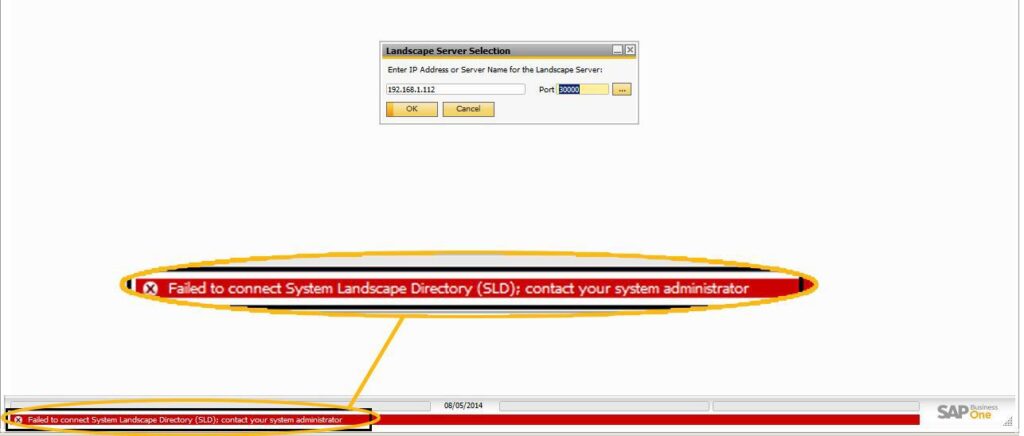
Failed to connect System Landscape Directory (SLD);contact your system administrator

Step-by-Step Guide to Resolve SAP Business One System Landscape Directory (SLD) Issues
SAP Business One (SAP B1) users often encounter the error message: “Failed to connect System Landscape Directory (SLD); contact your system administrator” while attempting to log in. This blog aims to provide step-by-step solutions to resolve this issue, ensuring smooth connectivity between the client and server systems.
Error Description
When attempting to log in to SAP B1 on a client system, the following error message is displayed:
“Failed to connect System Landscape Directory (SLD); contact your system administrator.”
Symptom
This issue arises during SAP B1 startup on a user’s system. The error indicates a connectivity problem between the client and the server hosting the System Landscape Directory.
Solution
This error typically occurs due to disrupted connectivity between the client and the server. Follow the methods below to troubleshoot and resolve the issue:
Method 1: Check SAP-Related Services on the Server
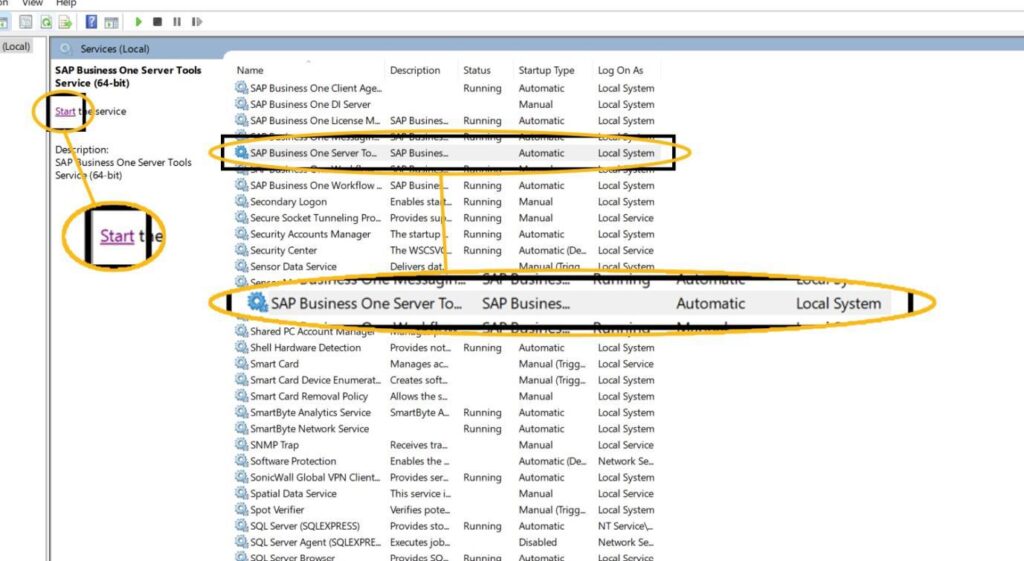
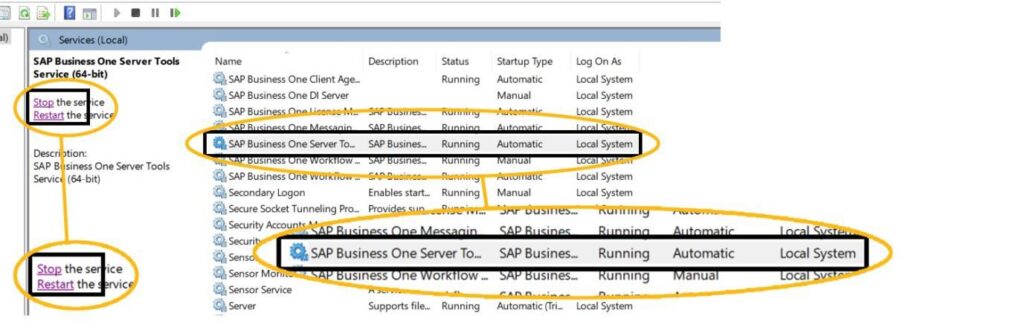
- On the server, verify that all SAP-related services (e.g., “SAP Business One Service Manager”) are running.
- If the services are not running, start them manually.
- Once the services are running, attempt to open SAP B1 on the client system.
Method 2: Verify Server Connectivity
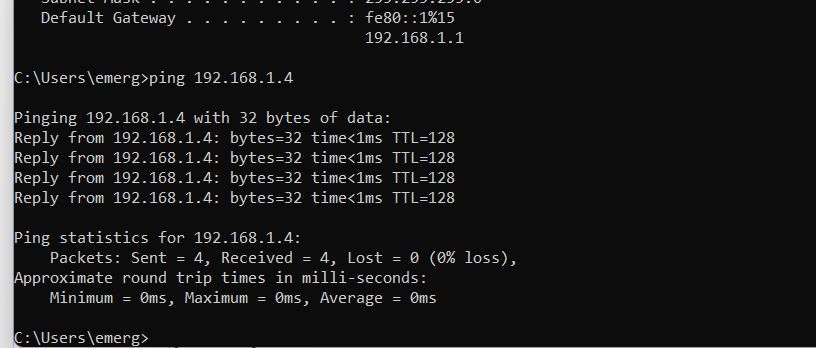
- Open the Command Prompt on the client system.
- Run the command:
ping <server-IP-address>to check the server’s connectivity. - Ensure that the
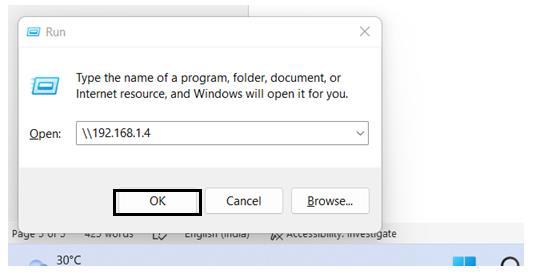
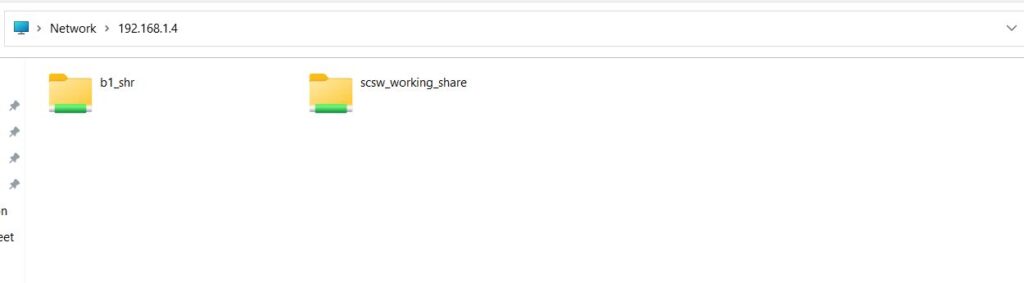
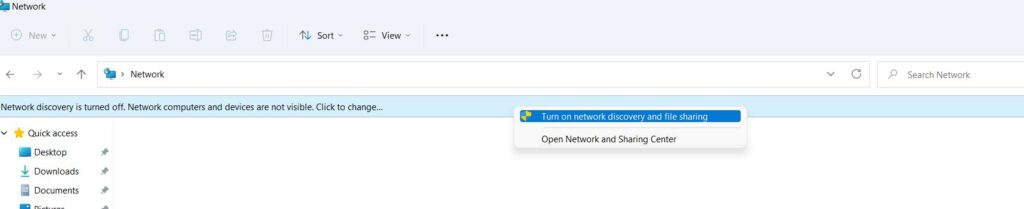
B1-sharefolder is accessible via the Run command (\B1-share). - If the ping fails or the folder is inaccessible, contact your IT team for assistance.
Method 3: Replace the b1-current-user.xml File
If connectivity is not the issue, follow these steps:
- Navigate to the directory:
C:\Program Files (x86)\SAP\SAP Business One\Conf - Copy the file
b1-current-user.xmland save it in a backup location. - Navigate to the directory:
%USERPROFILE%\Local Settings\Application Data\SAP\SAP Business One - Check if the
b1-current-user.xmlfile is empty or contains incorrect data. Rename it as a backup. - Move the copied
b1-current-user.xmlfile from the first directory to this location. - Restart SAP B1 and verify functionality.
Method 4: Update Configuration Files
If the issue persists, update the configuration files as follows:
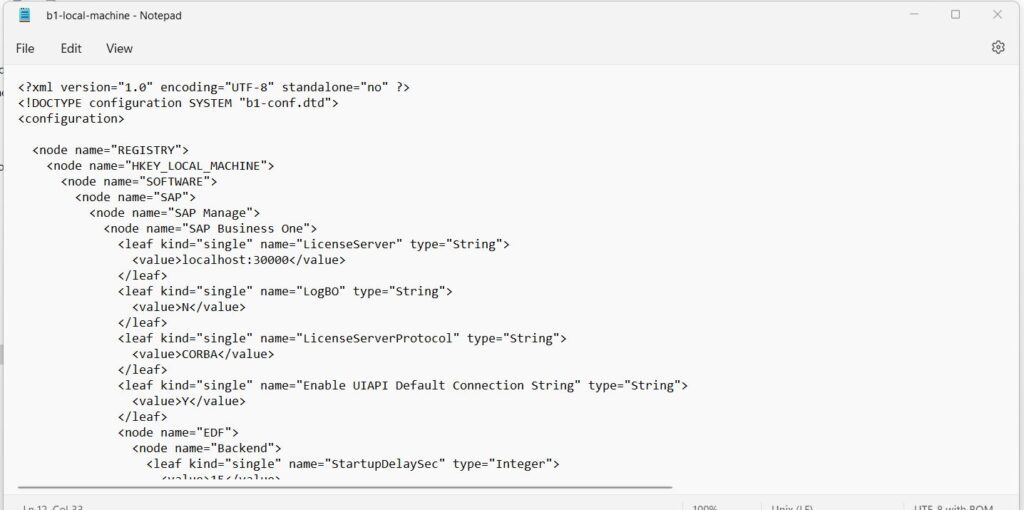
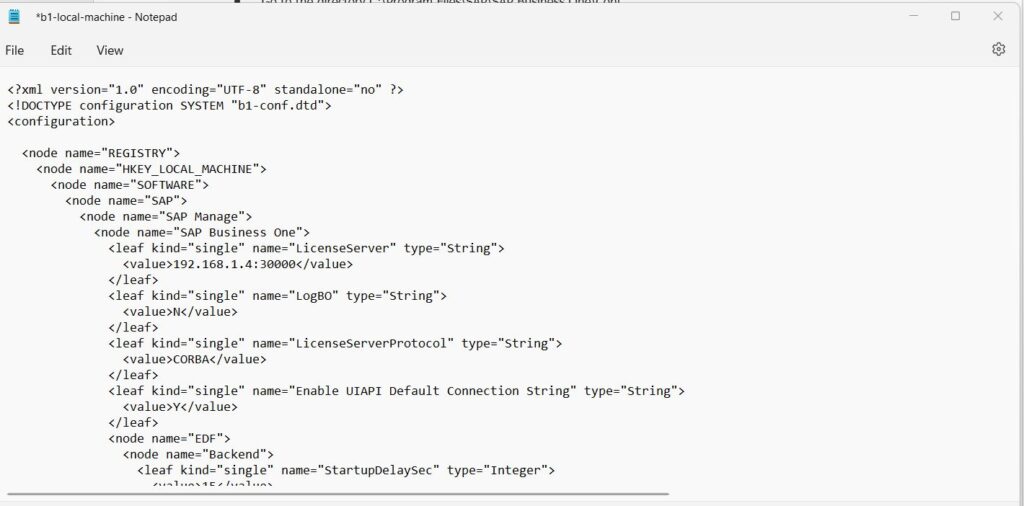
- Navigate to
C:\Program Files\SAP\SAP Business One\Conf. - Open the file
b1-local-machine.xml. - Replace instances of
localhostwith the server’s name or IP address. Save the file. - Repeat this process for the file located at:
C:\Program Files\SAP\SAP Business One DI API\Conf.
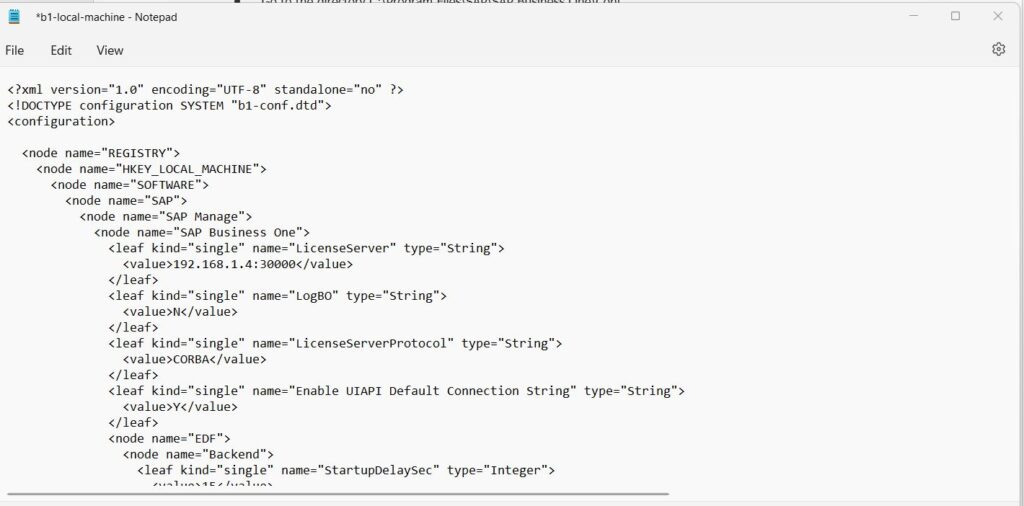
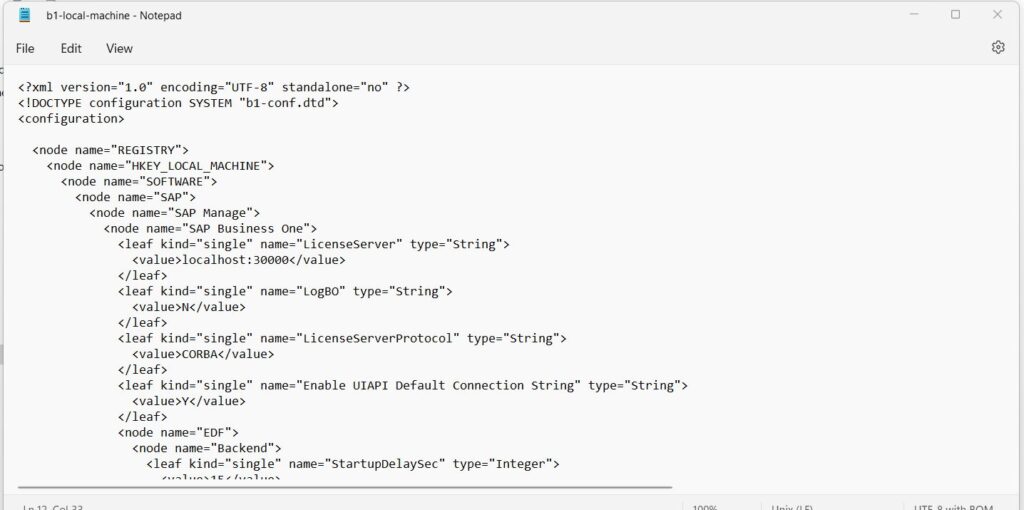
Go to the directory C:\Windows\System32\drivers\hosts and add the below line and check the issue was resolved or not.
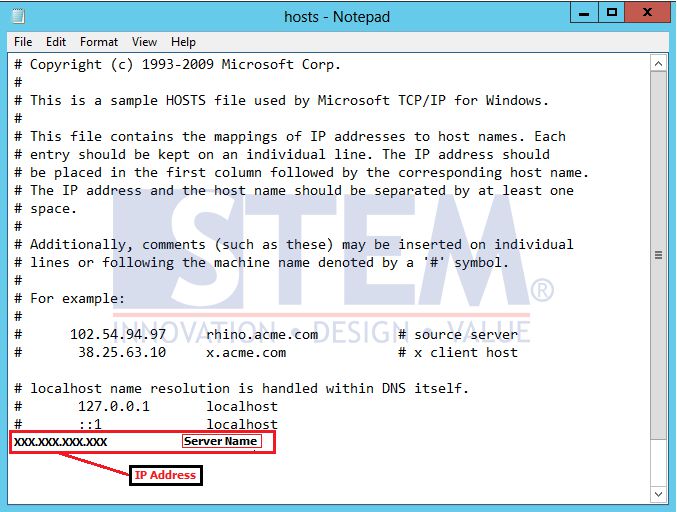
Method 5: Disable Windows Firewall
Sometimes, the Windows Firewall may block SAP B1’s communication with the server. Temporarily disable the firewall on both the client and server:
For Windows 11:
- Go to Start > Settings > Privacy & security > Windows Security > Firewall & network protection.
- Select the active network profile (Domain, Private, or Public).
- Turn off the Microsoft Defender Firewall setting.
- Test SAP B1 functionality.
For Windows 10:
- Go to Start > Settings > Update & Security > Windows Security > Firewall & network protection.
- Select the active network profile (Domain, Private, or Public).
- Turn off the Microsoft Defender Firewall setting.
- Test SAP B1 functionality.
The “Failed to connect System Landscape Directory (SLD); contact your system administrator” error can disrupt workflows but is usually resolvable with the above methods. Ensuring proper connectivity and updating configuration files are key steps. For persistent issues, don’t hesitate to seek support from your IT or SAP service provider.
FAQs About Landscape Directory (SLD)
1. Why does the SLD connection error occur even when the server is reachable via ping?
Ping only validates network layer connectivity (ICMP), not application-layer access. SLD depends on specific ports (default: 40000/40001). If those ports are blocked or the SLD service is down, the error persists despite successful ping.
2. How can I verify if the System Landscape Directory (SLD) service itself is running correctly?
Check the SAP Business One Server Tools Control Center in a browser (http://<server>:40000/ControlCenter). If inaccessible, the SLD service or Apache Tomcat instance may not be running or is misconfigured.
3. What role does the License Server play in SLD connection failures?
SLD and License Server are tightly coupled. If the License Server hostname/IP is incorrectly registered in SLD, clients fail to authenticate landscape data, triggering connection errors.
4. Can hostname resolution issues cause SLD failures even if IP connectivity works?
Yes. If the client resolves the server name incorrectly (DNS mismatch), SLD requests fail. This is why modifying the hosts file is sometimes effective—it forces correct name resolution.
5. Why does replacing the b1-current-user.xml file fix the issue?
This file stores cached connection metadata. If corrupted or pointing to an outdated SLD endpoint, the client cannot resolve the landscape, leading to connection failure.
6. What happens if “localhost” is used in configuration files in a multi-user environment?
“localhost” forces the client to look for SLD services on its own machine instead of the server. This misconfiguration is a common root cause in distributed deployments.
7. How do firewall rules specifically interfere with SLD communication?
Firewalls may block TCP ports used by SLD (typically 40000/40001) and License Server (30000). Even if SAP services are running, blocked ports prevent handshake between client and server.
8. Is this issue related to SAP HANA or SQL Server backends?
Indirectly. While SLD itself is independent, backend database connectivity failures (especially in SAP HANA environments) can cascade and appear as SLD connection issues during login initialization.
9. How can I confirm whether the issue is client-specific or system-wide?
Try logging in from another client machine. If it works elsewhere, the issue is local (configuration/cache). If all clients fail, the problem is server-side (services, SLD, or network).
10. What logs should be checked for deeper diagnosis of SLD errors?
Review logs in:
C:\Program Files\SAP\SAP Business One ServerTools\SLD\log
Apache Tomcat logs (if applicable)
These logs often reveal authentication failures, port binding issues, or service crashes not visible in the UI.
By following these guidelines, you can quickly restore access to SAP Business One and minimize downtime.


![SAP B1 Troubleshooting – Posting period locked; specify an alternative date [Msg 131 107]](https://www.emerging-alliance.com/wp-content/uploads/2025/01/SAP-B1-Troubleshooting-Solving-Stock-Challenges-Guide-to-Inventory-Errors-7_11zon-600x474.png)
![SAP B1 Troubleshooting - Only a production or template BOM can be defined as a purchase item, 'ITEM A00006' [Msg 3566-4]](https://www.emerging-alliance.com/wp-content/uploads/2025/01/SAP-B1-Troubleshooting-Solving-Stock-Challenges-Guide-to-Inventory-Errors-6_11zon-600x474.png)
![SAP B1 Troubleshooting – Inactive sales employee; specify active sales employee [Sales Order Sales Employee] [Msg 173207]](https://www.emerging-alliance.com/wp-content/uploads/2025/01/SAP-B1-Troubleshooting-Solving-Stock-Challenges-Guide-to-Inventory-Errors-5_11zon-600x474.png)
boyarka
Great post. Iwill be experiencing many of these issues as well..